
This article contains affiliate links. If you make a purchase through these links, we may earn a commission at no additional cost to you.
 Mena
MenaHi there, I’m Mena (@menachite), a hybrid engineer who handles both mechanical and electrical work.
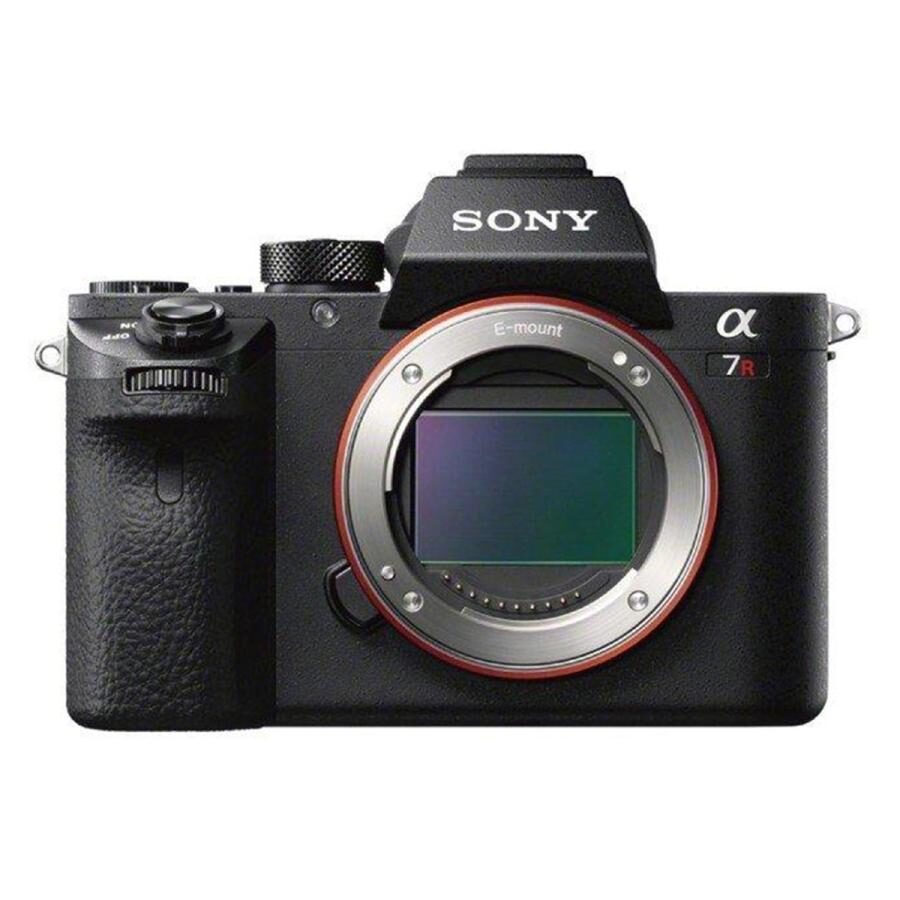
I recently purchased a Sony mirrorless camera secondhand.
The α series has a wide range of fans, from professionals to beginners.
The reason I bought it: getting a quote from a photo studio for my children’s Omiya-mairi and Shichi-Go-San ceremonies came out to 30,000 yen per event. With two children, that’s six Shichi-Go-San ceremonies — enough money to buy a mirrorless camera.
So I decided to just buy a camera. I picked up a used Sony α7Rii (hereafter a7RII) and was all set to start shooting — but in practice, I ran into some unexpected gotchas.
Here, I’ve compiled the things you should know and watch out for when using the a7RII in an easy-to-understand format. Let me start with the basic specs.
α7RII Basic Specifications
The a7RII is one of Sony’s popular full-frame mirrorless cameras, particularly known for its excellent image quality. It can capture high-resolution photos, making it a perfect camera for landscapes and portraits.
- Sensor: 35mm Full-Frame Exmor R CMOS Sensor
- Resolution: Approximately 42.4 megapixels
- ISO Sensitivity: 100–25600 (expandable to 50–102400)
- AF System: 399-point phase-detection AF and 25-point contrast AF for fast and accurate focusing
- Continuous Shooting Speed: Up to 5 fps
- Video: 4K video recording supported (Super 35mm mode)
- In-Body Image Stabilization: 5-axis stabilization for steady handheld shooting
- Viewfinder: Electronic viewfinder (EVF) with approximately 2.36 million dots
These combined specs make the a7RII capable of high-resolution photos and smooth 4K video. Even as a used camera, the specs are attractive, making it a great choice for anyone wanting to try a full-frame camera!
Update and Install PlayMemories Camera Apps Sooner Rather Than Later!
It appears that the PlayMemories Camera Apps service may be discontinued soon.
https://www.playmemoriescameraapps.com/portal
This service extends the camera’s in-body apps, enabling useful features like sending images to a smartphone via Wi-Fi and remote control — there are quite a few handy apps available, so I’d recommend checking it out sooner rather than later.
Once the service ends, the apps will no longer be obtainable, so as an a7RII user, I recommend updating or downloading the free apps as soon as possible!
However, if you try to access PlayMemories Camera Apps via the camera’s built-in Wi-Fi, you may encounter a connection error. In that case, you can also access the PlayMemories site directly on a PC and install apps by connecting the camera via USB. This method bypasses the error and lets you add apps successfully, so give it a try.
Smart Remote Control: Easy Shutter Operation from Your Smartphone
“Smart Remote Control,” available to download from PlayMemories Camera Apps, is a convenient app that lets you remotely operate the a7RII from your smartphone or tablet. With this app, your phone or tablet becomes a wireless remote, allowing you to trigger the shutter from a distance and check the live view from the camera.
This is incredibly useful — and honestly, if you’re not used to framing shots, it can be really hard to tell from the viewfinder alone whether the composition looks good or not.
The biggest advantage of Smart Remote Control may be less about remote shooting and more about being able to check your framing using your smartphone screen.
Main Features of Smart Remote Control:
- Remote Shooting: You can trigger the shutter remotely from your smartphone or tablet. This is handy for tripod-based selfies, long-exposure landscapes, and any other shot where you don’t want to physically touch the camera.
- Live View: The camera’s live view can be displayed in real time on your smartphone or tablet, allowing you to check framing and composition while shooting.
- Key Camera Settings: Settings such as ISO sensitivity, exposure compensation, and aperture can be adjusted from your smartphone — no need to touch the camera, enabling smoother shooting.
How to Use It
- Install the “Smart Remote Control” app from PlayMemories Camera Apps onto your camera.
- Install the Imaging Edge Mobile app on your smartphone or tablet. (A dedicated app is required to use the Smart Remote Control features.)
- Turn on the camera’s Wi-Fi and connect your smartphone to the camera’s Wi-Fi network.
- Launch the Imaging Edge Mobile app, and you’ll be able to operate the camera via Smart Remote Control.
Smart Remote Control is also useful as a substitute for a remote shutter release or self-timer, so it’s especially recommended for those who enjoy landscape photography or self-portraits.
Charging Via the Body But USB Connection Not Recognized
This seems to be a software bug in Sony cameras, but I want to share it here.
Used cameras often have quirks that differ from new ones.
For example, the a7RII may not be recognized when connected via USB, which can cause some panic — “Is this thing actually broken?” In reality, this can often be resolved simply by toggling the connection setting on and off a few times!
The steps are:
- Find “USB Connection” in the menu and set it to On.
- Once, set it back to Off.
- Then, set it to On again.
This should get the camera recognized via USB! Before worrying that it’s broken because it’s a used camera, try this method first.
Also, if the USB cable is a charge-only cable, it won’t work — make sure you have a cable that supports data transfer.
Caution! Battery Drain Is Faster Than You’d Expect
The a7RII drains its battery quite quickly. Especially when you want to shoot for an extended period outdoors, the battery can run out in no time. This isn’t a used camera issue — it’s simply how the a7RII is.
The solution: always carry a spare battery! Without one, you might miss that perfect shot, so make sure to have one on hand.
Video Recording Is Tough on the Battery
For video recording, even with a spare battery, after about an hour of shooting the battery drops below half, so I purchased a cable that allows direct power supply from a portable battery.
Essential Accessories
When you get a camera secondhand, it’s easy to forget about accessories — but having them makes a world of difference. Mirrorless cameras like the a7RII have exposed sensors that can easily pick up dust and debris, so accessories are essential.
Lens Pen
A handy tool for quickly removing fine dirt from lenses. Great for dealing with fingerprints and dust.
Blower
Blows away dust and debris from lenses and the sensor. Especially useful when shooting outdoors.
Camera Storage Bag
A dedicated bag that can store the camera and its accessories together makes transport easier and keeps your equipment safe — highly recommended.
The 300-size bag above can fit one camera body and two lenses.
I keep my camera, a TAMRON 28-70mm zoom lens, and accessories in mine.
Dry Cabinet
A home center storage case can apparently work as a dry cabinet, but I think it’s better to choose a case with dustproof and waterproof properties for better sealing.
Put a moisture absorber inside and you’ve got a simple DIY dry cabinet.
Since I’m an engineer, I use a tool box as my dry cabinet.
The drawers make access easy, and the waterproof gasket means moisture absorbers work effectively inside.
Moisture Absorber
If you don’t have these prepared in advance, you’ll find yourself scrambling for “this” and “that,” so get everything ready with plenty of time to spare.
Summary
The key points to keep in mind when using a secondhand a7RII are: updating or installing PlayMemories Camera Apps, resolving USB recognition issues, dealing with battery drain, and having the necessary accessories on hand. With just these four things covered, your shooting experience should be significantly smoother!
It has a few quirks, but that’s also part of the charm of mirrorless cameras!